
How to Change Wallpaper on Every Unlock on Samsung Galaxy & Android (Unlimited Folder Guide)
Bypass Samsung One UI's 15-image Lock Screen pack limit and rotate hundreds of local 4K wallpapers automatically on every screen unlock across Samsung Galaxy S24/S25, Fold, A-Series, and all Android phones.
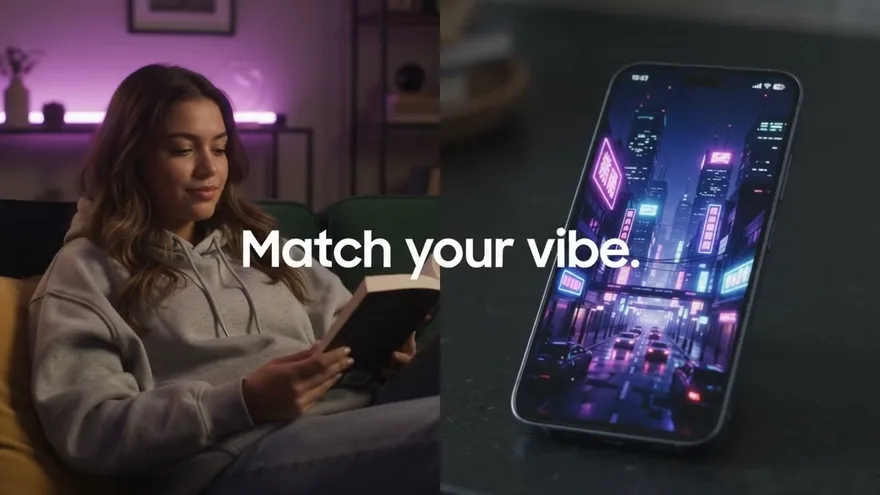
Samsung Galaxy phones running One UI include a neat built-in trick for lock-screen packs—until you try to add your 16th photo and hit Samsung’s hard 15-wallpaper ceiling, or realize adding new downloads to your folder doesn’t automatically update the pack, or find that your Home Screen still stays stuck on a single static image.
If you want to cycle an unlimited local folder of 50, 200, or 500+ high-resolution wallpapers on every screen unlock (or timed schedules) across Samsung Galaxy S, Z Flip/Fold, A-Series, Xiaomi, OnePlus, or Motorola, here is the exact setup.
Step 1: Turn Off One UI “Wallpaper Services” Override (Samsung Only)
So Samsung’s stock Dynamic Lock Screen doesn’t fight for control of your lock screen:
- Long-press an empty spot on your Galaxy Home Screen and tap Wallpaper and style.
- Tap Change wallpapers → Wallpaper services (near the bottom).
- Select None and tap Apply.
Step 2: Configure Unlimited Unlock Rotation in Wallpaper Rotator
- Install Wallpaper Rotator: Auto Change (
com.aistudio.wallpaperrotator.wprrot) from Google Play. - Select your local wallpaper folder (every image inside is included with zero 15-item cap!).
- Choose Lock Screen Only, Home Screen Only, or Independent Playlists for Both.
- Select the Unlock Trigger (or combine with 15m / 1h / daily intervals) and toggle Shuffle on.
Step 3: Whitelist from One UI “Deep Sleep” in 10 Seconds
Samsung’s Freecess / Deep Sleep manager automatically hibernates apps you don’t open manually for 3 days. Keep your unlock trigger instant forever:
- Open Settings → Apps → Wallpaper Rotator → Battery → Unrestricted.
Want to preview how unlock rotation feels before installing? Click ⚡ Simulate Unlock inside our Interactive Android Wallpaper Simulator!
Wallpaper Rotator: Auto Change
Keep your phone feeling fresh every day with WorkManager zero-battery static folder playlists, independent lock/home screen rules, and hardware-accelerated MP4 Video Live Wallpapers.
Frequently Asked Questions
Why does Samsung One UI limit lock-screen multi-pack wallpapers to 15 photos? +
Samsung's built-in Gallery lock-screen pack copies a maximum of 15 selected files into a fixed system cache rather than reading dynamically from a live folder on your storage.
How do I rotate 50, 200, or 1,000 wallpapers on every unlock on Samsung Galaxy? +
Install Wallpaper Rotator (com.aistudio.wallpaperrotator.wprrot), disable Samsung's Dynamic Lock Screen service so One UI doesn't override your lock screen, select your local folder, set Target to Lock Screen (or Both), and enable the Unlock Trigger.
How do I stop Samsung One UI 'Deep Sleeping Apps' from pausing my wallpaper rotation? +
Go to Settings → Apps → Wallpaper Rotator → Battery and select 'Unrestricted', and ensure it is not listed under Device Care → Battery → Background usage limits → Deep sleeping apps.
More Android Guides
All Articles →AI Video Camera Movement Prompts Guide: Dolly, Pan, Orbit & FPV Verbs That Actually Work
Master the exact cinematography terms—gimbal dolly push-in, 180-degree orbit, low-angle chase rig, crane reveal, and handheld 35mm drift—that unlock pro AI videos on Android.
AI Video TutorialsHow to Animate Any Still Portrait into a Cinematic Video Reel on Android
Step-by-step workflow to turn a static portrait, fashion shot, or AI artwork into a smooth 9:16 video clip with natural camera motion and breeze physics using VibeAI.
Google Pixel GuidesHow to Automatically Change Wallpapers on Google Pixel from a Local Folder
Google Pixel's built-in Wallpaper & Style app only rotates curated Google collections once a day. Here is how to auto-rotate your own offline local folders or MP4 videos on Pixel 6, 7, 8, 9 & 10.