
How to Run Separate Home Screen & Lock Screen Wallpaper Playlists on Android
Keep clean, icon-friendly minimal AMOLED backgrounds on your Android Home Screen while rotating vibrant photography, anime, or travel albums exclusively on your Lock Screen.
Every Android customization enthusiast eventually discovers the Golden Rule of Clean Setups:
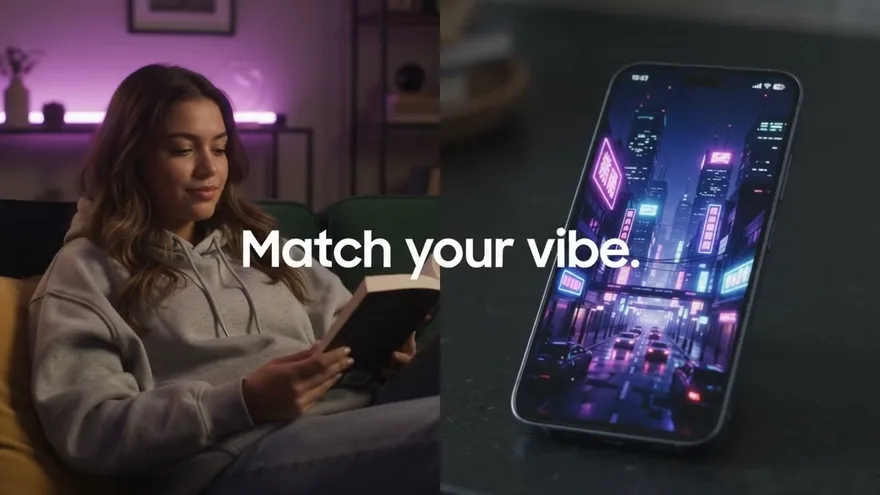
Detailed photography belongs on your Lock Screen; calm, dark, high-contrast geometry belongs behind your Home Screen icons.
When you slap a bright, detailed street or sunset photo behind four rows of app icons and weather widgets, white app labels become impossible to read and your launcher looks chaotic. Conversely, putting a plain dark gradient on your Lock Screen feels boring every time you check the time.
With Wallpaper Rotator: Auto Change (com.aistudio.wallpaperrotator.wprrot), you don’t have to compromise—you can automate independent rules for each surface.
Three Dual-Playlist Combos That Look Incredible on Android
- The Clean Minimalist Pro:
- Home Screen: Fixed or daily Dark OLED Minimal folder (crisp icon legibility + AMOLED power savings).
- Lock Screen: Amalfi Sunset or Cyberpunk Shinjuku folder rotating on Every Unlock.
- The Work-Safe Creator:
- Home Screen: Subtle architectural / mountain photography rotating every 6 hours.
- Lock Screen: Expressive Anime Skies, Fantasy Worlds, or PhotoFix Palm Vice key art.
- Full Motion Cinema Mode:
- Switch into Wallpaper Rotator’s built-in MP4 Video Live Wallpaper engine whenever you want a looping VibeAI neon rain or ocean sunset background that pauses automatically when your screen turns off.
Try Both Surfaces Live Right Now
Before setting up your folders on your phone, toggle between 🔒 Lock Screen and 🏠 Home Icons inside our Interactive 4K Android Wallpaper Simulator, or compare all five top Android wallpaper tools in our 2026 Automatic Wallpaper Changer Benchmark.
Wallpaper Rotator: Auto Change
Keep your phone feeling fresh every day with WorkManager zero-battery static folder playlists, independent lock/home screen rules, and hardware-accelerated MP4 Video Live Wallpapers.
Frequently Asked Questions
Why do busy photography wallpapers look great on the Lock Screen but terrible on the Home Screen? +
Your Lock Screen leaves the center 70% of the display open so detailed portraits, cars, and landscapes shine. Your Home Screen overlays app icons, text labels, and widgets—where busy bright highlights make white icon labels unreadable.
Can Android natively auto-rotate two separate folders for Home Screen and Lock Screen? +
Not out of the box, and Live Wallpaper changers like Muzei apply one shared surface to both. Wallpaper Rotator uses Android's native FLAG_LOCK and FLAG_SYSTEM APIs so your Lock Screen and Home Screen can follow completely independent rules.
Can I use dark OLED wallpapers at night or behind icons to save battery? +
Yes! On AMOLED displays, true #000000 black pixels draw zero display power and maximize icon contrast—making a Dark OLED Minimal Home playlist paired with a vibrant Lock Screen playlist the ultimate daily Android setup.
More Android Guides
All Articles →AI Video Camera Movement Prompts Guide: Dolly, Pan, Orbit & FPV Verbs That Actually Work
Master the exact cinematography terms—gimbal dolly push-in, 180-degree orbit, low-angle chase rig, crane reveal, and handheld 35mm drift—that unlock pro AI videos on Android.
AI Video TutorialsHow to Animate Any Still Portrait into a Cinematic Video Reel on Android
Step-by-step workflow to turn a static portrait, fashion shot, or AI artwork into a smooth 9:16 video clip with natural camera motion and breeze physics using VibeAI.
Google Pixel GuidesHow to Automatically Change Wallpapers on Google Pixel from a Local Folder
Google Pixel's built-in Wallpaper & Style app only rotates curated Google collections once a day. Here is how to auto-rotate your own offline local folders or MP4 videos on Pixel 6, 7, 8, 9 & 10.